
How to Convert M4A to WMA
Most m4a files are created when you use iTunes to rip CDs. iTunes Music Store is the most common source of m4p files. Each of these file types require different methods for converting to wma. Because the m4p files are protected with DRM, you have to play by the iTunes Music Store rules in order to convert them - in this case, the easiest way to go from m4p to wma is to burn an Audio CD in iTunes and then use Windows Media Player to rip that CD as wma files. Converting m4a files to wma is fully automated using my favorite freeware media converter, WinFF.
Before you begin, be sure to download WinFF media converter and install the application.
Configuring WinFF to Convert to WMA
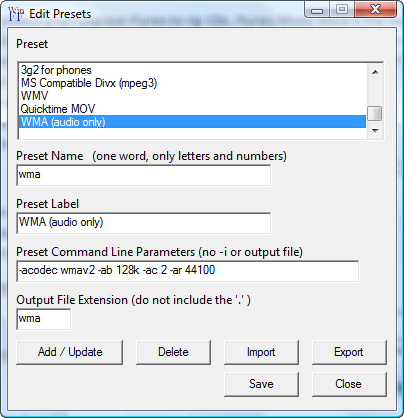
When you first open WinFF, go to the Edit menu and choose Presets. Configure the following:
Preset Name: wma
Preset Label: WMA (audio only)
Preset Command Line Parameters: -acodec wmav2 -ab 128k -ac 2 -ar 44100
Output File Extension: wma
When finished, click the Add/Update button. Your preset should look like this image:
Click Save and then click Close to return to the WinFF conversion interface.Converting Files from M4A to WMA
Now that you have your WMA conversion preset configured, it's time to setup a batch of M4A files to convert to WMA. Click the Add button and add one or more M4A files to WinFF. In the Convert to dropdown menu, choose your WMA (audio only) preset. Pick an Output folder to save your WMA files. Click Convert.
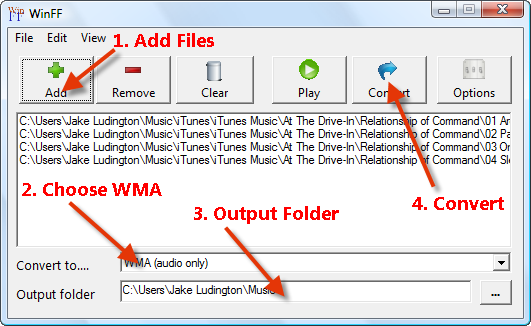
Repeat these steps for as many M4A files as you need to convert.


0 comments:
Post a Comment